
taking into consideration this, i decided to pull out my old rx 570 and put it back into my computer to make myself a virtual machine with my current graphics card passed through into it. so far it’s been a good experience so why not talk about it here.
after putting the computer back together i started it up and noticed that for some reason the bios screen is all white on the card i’m using for linux. weird, but waiting a few seconds results in linux booting normally (apart from what seemed to be a stack trace appearing that i fixed later on) so i take no notice. once the computer booted i had a look for guides and came across this guide from github user bryansteiner which covers installing the necessary software, setting up hooks to automatically pass through any devices you’d want to use and add them back to your host once you’re done with the vm, making the vm itself, and some performance enhancements. i followed this and not long after saw the tianocore boot logo on the display i plugged into the vm’s gpu. after installing windows i noticed that the graphics card claimed to have failed to properly start, with the error code 43 showing up in device manager. i turn the vm off to troubleshoot and end up learning something fun about radeon graphics cards.
turns out there exists a known, years old, still unfixed bug named the AMD/Radeon Reset Bug where from what i understand, after powering off or restarting a VM the card is put in a state where its unable to come back up until you reboot your host. and to make things even better if you try to reboot your host in this state it’ll hang and you’ll have to force it off. this naturally diverted my attention a bit and led me to try out this fork of a kernel module named vendor-reset which claims to be able to fix this bug for the family of graphics cards mine belongs to. unfortunately it didn’t seem to function on my setup so after re-evaluating whether or not i *really* needed the gpu to be accessible on my host i decided that it would have been more of a nice-to-have than something that would stop me from doing anything i’d want to do on the host so i ended up just giving vfio-pci full access to the card later on.
but until that happened i was still in hell and still wanted to find the solution to why windows didn’t want to start my graphics card. after some searching i found posts online that claimed that having Resizable BAR enabled in your BIOS can cause this issue. i disable it however and my computer was unable to start the display manager (or looking back at it maybe it was attempting to start it on the other GPU as at this point i hadn’t actually given vfio-pci the card, that’d come later). since it clearly wanted me to re-enable ReBAR i did and came across this page which contained the information i needed to sort this out.
so to explain what the bloody hell’s going on i’ll attach this picture here:

you don’t really need to know what any of this output means (i don’t even know myself really right now lol, my last motherboard was for a 13 year old processor. said processor is also currently where my computer gets its hostname, hence why its set to what it is. the haswell i7 unfortunately did not have ReBAR support), but i would like to bring your attention to the bottom line of that output, BAR 2. by default, my machine under Linux sets BAR 2 to its maximum supported size of 256MB. turns out windows doesn’t like that. it can’t handle that being set to anything above 8MB. so i temporarily change the BAR 2 size and boot the VM up, which did indeed fix that issue.
now that i’m able to see graphics at a resolution that exists i thought i might as well fix the reset bug so that i don’t have to reboot my host every time i reboot the vm. as discussed earlier my fix for it personally was to just give vfio-pci access to the card all of the time. so while figuring out how that all worked i came across this repo from github user clayfreeman which also goes in-depth on how to make a virtual machine with a gpu passed through into it. i used all the steps in the “Blacklisting the GPU” part to do exactly as the name suggests. after rebooting i noticed that the stack trace i went on about earlier disappeared, then with my newfound knowledge decided to blacklist the M.2 NVMe SSD i’m using as a boot drive for the VM so that i never have to see it again on my linux machine. doing that meant that i had to get rid of the scripts in the libvirt hooks folder for binding the GPU to vfio-pci and back to amdgpu once i’m done with the VM so while doing that i set up a script that unbinds the card from vfio-pci so it can resize the BAR, resizes BAR 2, then rebinds it to vfio-pci before starting the VM so i don’t have to do it manually every time i reboot the host.
with the vm now functioning i decide to go through the setup for Looking Glass which was a fairly easy experience. compiled a lot easier than a lot of other softwares i’ve had to compile to use in the past. upon trying to actually use it though i just got a black screen on the viewer which i fixed by making the realisation that i compiled the latest version on the host and on the VM downloaded an older release candidate build. updating the VM’s software fixed that issue.
now for the question of kernel-level/invasive anti cheat softwares. my answer personally is to not even bother with evading their detections. i’m lucky in the sense that the only thing i actively use that’s “protected” by these kinds of malwares is VRChat. when they initially announced they were going to use easy anti-cheat in their software the platforms that people moved over to in protest were ChilloutVR and what was called Neos VR at the time, now known as Resonite. i picked Chillout mostly due to it’s familiarity coming from VRChat compared to Neos. i wouldn’t mind using this as a chance to go back. in fact i’ve already ported my avatar to Chillout and it works great.
speaking of anticheat i thought i’d discuss Roblox’s VM detection for a quick second, part because i use the platform a lot to play Dandy’s World (good game if you make the choice of not interacting with the developers’ Discord server, use a randomiser once you’ve got basically all the Toons and in my experience it makes the game really fun) and part because people are very very split online as to whether it works on a VM or not. i can add one to the list of people who have had success in running Roblox in a VM:
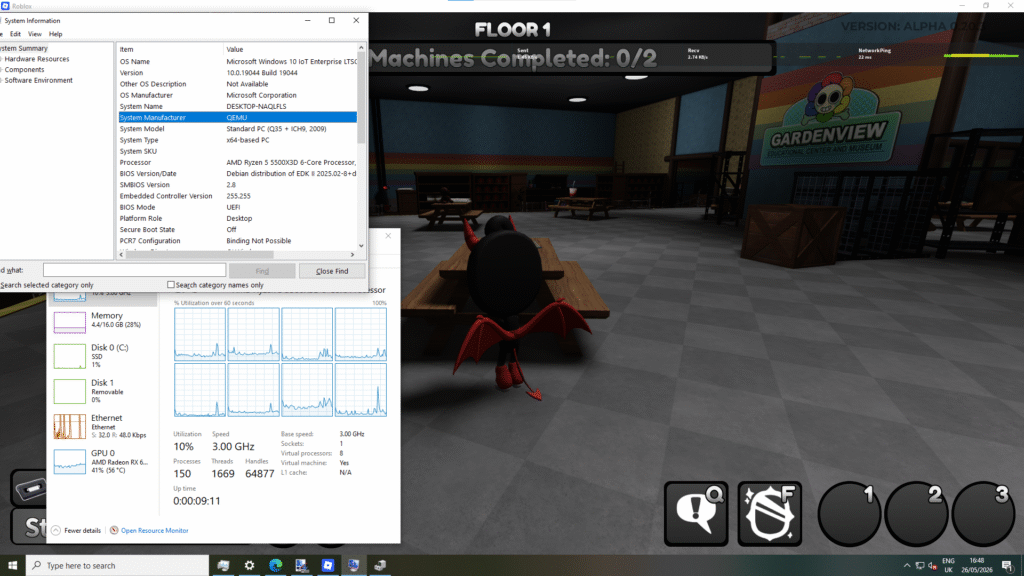
some things i would like to state though are that you do need a GPU passed through into it, it will error out if you don’t give it one, and i currently don’t understand why but now know from experience that for Roblox to run on a VM whose host runs an AMD CPU you also need to make sure to pass the ‘topoext’ feature which allows the VM to be aware of the fact that you have a processor capable of hyper-threading.
probably good practice to enable it either way though considering what it does.
edits
(2026-05-31: “it will error out if you don’t” is now “it will error out if you don’t give it one”)
(2026-05-31: replaced the phrase “QEMU hooks.d” with “libvirt hooks”)
(2026-05-31: updated images to enable enlarge on click)